Who has what: check-out, check-in and audits
Every asset shows where it is and who has it, and every move is on its history.
Three kinds of whereabouts
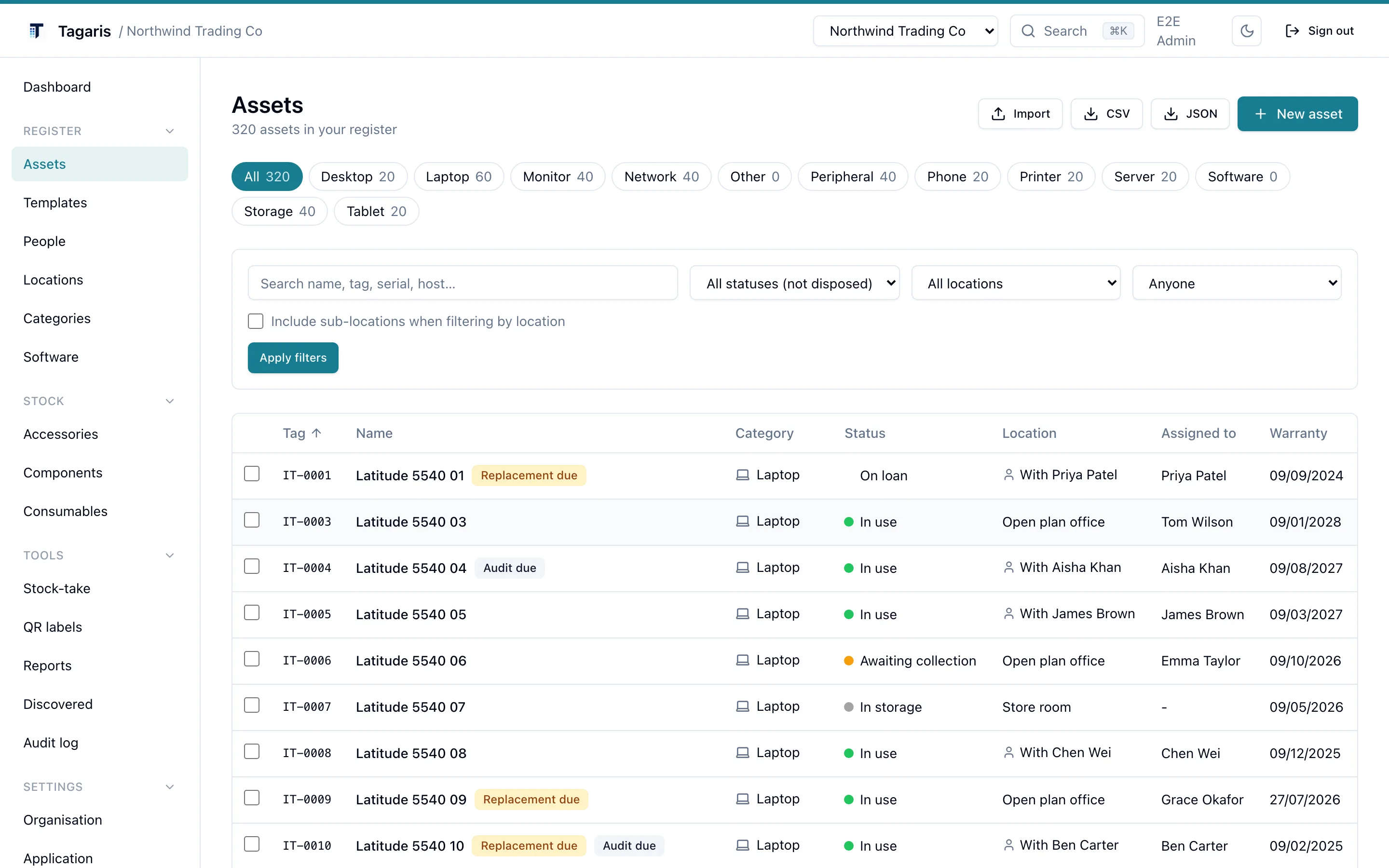
An asset is assigned to a person, to a location, or held in stock. A person can be at a location too, so a laptop can be with Priya at head office, or simply with Priya wherever she happens to be. Check-out records who took what and when; check-in brings it back to a location or into stock. The full trail stays on the asset's history.
- Search by name, tag, serial or hostname
- Filter by status, location (with or without its sub-locations) and person
- One-tap next steps from the current status, in the browser and in the app
Stock that moves as well
Each item records every movement, so you can answer who took the last dock and when. Give any item a minimum quantity and the daily digest lists it when stock falls below.
Accessories
Keyboards, mice, headsets, docks. Check one out to a person and back in when it is returned; the accessory page shows who currently holds what.
Components
RAM, SSDs, spare screens. Install a component into an asset and the remaining stock decrements; the asset's page shows what has been fitted.
Consumables
Toner, cables, batteries. Issue them to a person and the stock goes down. The stock guide covers all three.
Audits that leave evidence
Stock-take in the browser
Give a category an audit interval in months and the Stock-take page lists what is due. Open an asset by scanning its label, or search by tag, name or serial, then tap Audited. The date goes on the asset's history, the asset list can filter on it, and an Audit due badge shows on anything overdue.
Audit mode in the mobile app
On the phone, Audit mode records an audit for every label you scan and tells you when a label is not found or belongs to a different server. Room labels make the start of a walk-round one scan; QR labels, scanning and audits covers printing and scanning them. The app records audits with no signal: scans made in a comms room or a warehouse wait on the phone and sync later, recorded at the time of the scan.
Status, in your own words
Built-in statuses and your labels
Every asset has one of five built-in statuses: in use, in storage, repair, retired or disposed. Filters, alerts and reports work from these. If your organisation says "On loan" or "Awaiting collection", define those as status labels in Settings, each with a colour and the built-in status it behaves as. The label is what people see; the logic underneath does not change.
Bulk changes
Tick assets in the list and set a status, or move them to a location, in one action. Each asset gets its own history entry, so the trail stays per asset. A bulk status change also clears any custom label on those assets, so the new status is what shows.
Which plan do I need?
Assignment, check-out and check-in, stock, audits, bulk changes, custom status labels, issues and the org-wide audit log of who changed what are all in the free tier, and so are view-only logins, so a service desk can look up who has what without being able to change it. A Team licence adds seats for the people who move kit and record audits, with Admin and Editor roles and access groups for particular jobs, so HR can take kit back from a leaver and nothing else. See pricing.
Questions
Can an asset be assigned to a person and a location at the same time?
Yes. Assign it to a person at a location when it lives at their desk, or mark it as with the person when it travels with them. Either way the person shows as the assignee.
Is a person the same as a user account?
No. A person is anyone an asset can be assigned to and may never sign in. Login accounts are separate: view-only logins are free and unlimited, and anyone else who changes things uses a seat on a Team licence.
When is something an accessory rather than an asset?
An accessory is a stock line with a quantity: check one unit out to a person and back in. If an item needs its own serial number, photos and history, make it an asset instead.
See it with data in it
The live demo runs the current release with people, locations and stock already loaded. No sign-up.